

Tutorial – Automatic Training Tool
Smart Calisthenics Tracker – User Guide
The tool available on the Tracker page lets you automatically count your repetitions (push-ups, pull-ups, handstand push-ups…) and your hold times (handstand, planche, front lever…) using your device's camera.
It's an innovative tool that allows you to track your sessions automatically using computer vision.
It was designed to provide objective feedback on your practice, without approximation, and meets the need to no longer have to tediously record the content of each session manually.
You can record your sessions in two ways:
- Manually – enter exercises and reps in the table, then publish your sessions.
- Automatically with AI – the tool counts your reps / holds. At the end of each exercise, click "Save Session" to store it in your account!
👉 This page explains how to use the AI tool correctly to get the best results.
Step 1 – Launch the Tool
Log in (or sign up if it's your first time) and click the LIVE button to record a session automatically in real time.
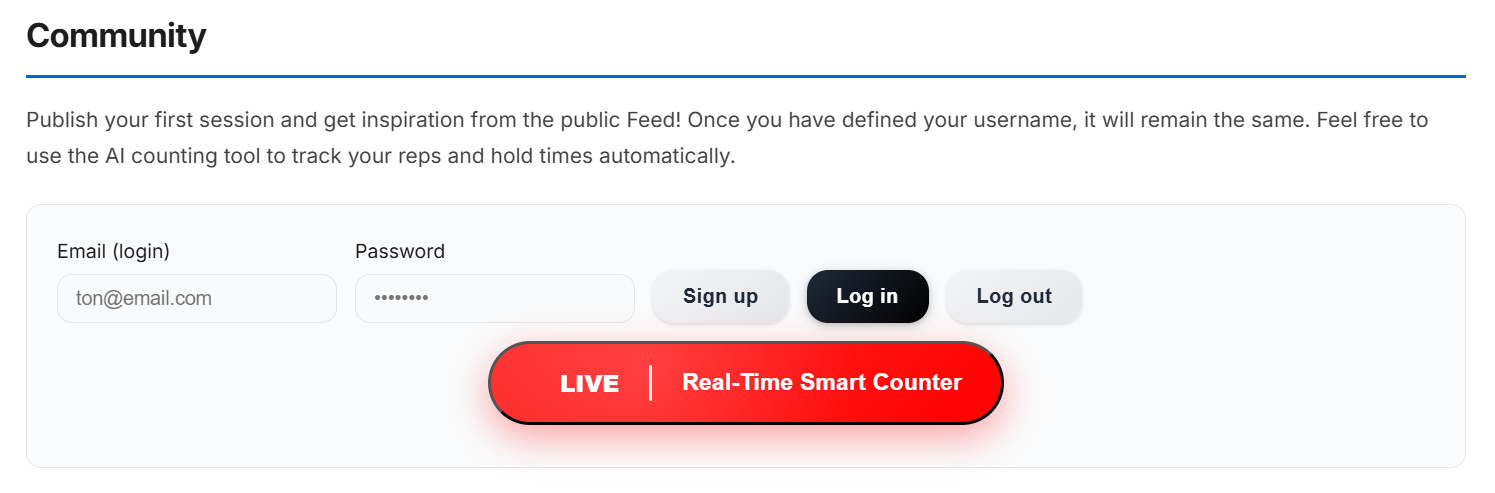
Login block for the training tool
Step 2 – Exercise Selection and Setup
- Allow camera access and position it so your entire body is visible.
- Select the exercise you want to perform from the dropdown menu.
- For weighted exercises, fill in the weight field by entering the weight in kg.
Step 3 – Exercise Execution
For the motion sensor to work optimally, make sure your body is well highlighted.
Once the exercise is finished, a message indicating the set is complete appears. You can then save your session or start a new set.
ℹ️ For push-ups, pull-ups and dips: for the exercise to be considered finished, you must remain still in the final position for 2.5 seconds. The system then automatically finalizes the set.
Usage Examples
📱 Also available on the mobile app
The AI tracker is integrated into Calis League, the mobile app dedicated to calisthenics performance. Find the AI tracker, video analyzer, session history and progress graphs — directly on your iPhone or Android.
🎁 BONUS: Add the App to Your Home Screen
For ultra-fast access to your workout tool, install this page as an app on your phone!
🍎 On iPhone / iPad (Safari):
- Tap the Share button 📤 (bottom center)
- Scroll down and select "Add to Home Screen"
- Tap Add
- ✅ The icon appears on your home screen!
🤖 On Android (Chrome):
- Tap the three dots ⋮ (top right)
- Select "Add to Home screen"
- Confirm by tapping Add
- ✅ The icon appears on your home screen!
🚀 Launch the app directly from your home screen for even faster workout tracking!